How to Optimise Android Apps for Performance and Battery Life
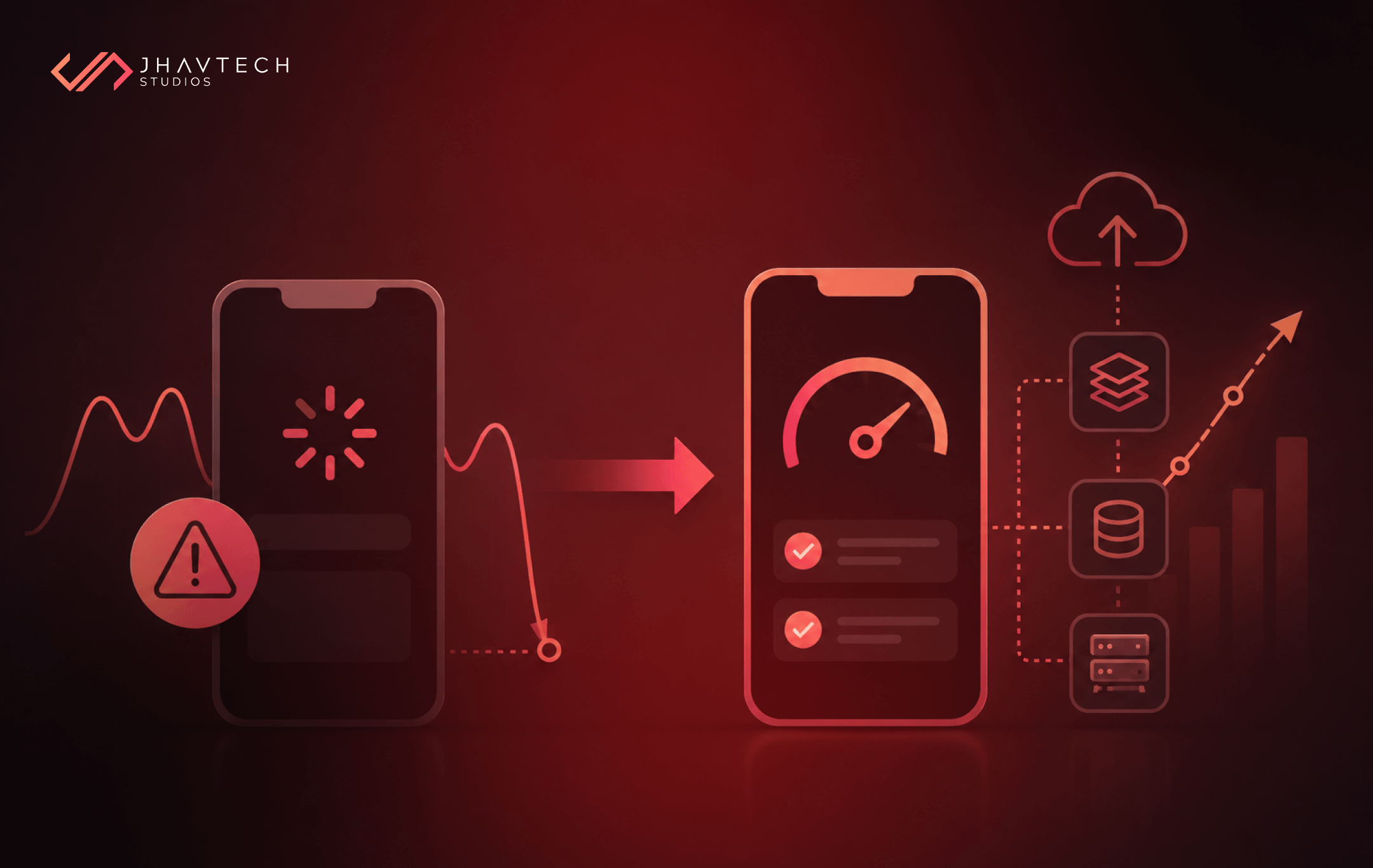
Users expect Android apps to open fast, stay smooth and go easy on the battery. If an app lags, freezes or drains power, people uninstall it, however good it looks.
Google Play now measures this for you. Its Android vitals flag apps whose user-perceived crash rate goes above 1.09% or whose ANR ("App Not Responding") rate goes above 0.47%, and apps above those lines can be shown less in the Play Store.
This guide covers how to optimise Android apps for speed and battery life in 2026: the techniques, the tools and the checks our team uses on every Android build.
Why App Performance and Battery Optimisation Matter
The Play Store holds millions of apps, so the bar for quality is high. When you optimise an Android app properly, you get:
✅ Better User Experience: fast, responsive screens make people feel in control.
✅ Higher Retention: smooth apps keep users coming back.
✅ Better Store Visibility: Google Play takes crash and ANR rates into account.
✅ Better Ratings: users reward fast, stable apps with 4–5 stars.
✅ Lower Acquisition Cost: happy users recommend the app, so you spend less on marketing.
At Jhavtech Studios, our Android app development work puts optimisation first, so every build is lean, stable and battery-friendly.
Top Techniques to Improve Android App Performance
1. Use a Clean Architecture (MVVM)
Fast apps start with good structure. Google's guide to app architecture recommends separating the UI layer from the data layer, usually with ViewModels and a repository. That keeps code modular, easier to test and easier to optimise later.
2. Keep Work Off the Main Thread
Heavy work on the main thread causes stutter and ANRs. Move database queries, file access and network calls to background threads with Kotlin coroutines.
- API calls: Kotlin coroutines + Retrofit
- Image loading: Coil or Glide (decoding happens off the main thread)
- Database access: Room with coroutines and Flow
- Deferred or periodic work: WorkManager
3. Keep Layouts Flat and Compose Efficient
Deeply nested layouts slow rendering. In XML, use ConstraintLayout for flatter view trees. In Jetpack Compose, avoid unnecessary recomposition by keeping state small and stable, and use lazy lists for long content.
💡 Pro Tip: Use the Layout Inspector in Android Studio to find slow parts of your UI. See Google’s ConstraintLayout reference for details.
4. Turn On R8
R8 shrinks, optimises and obfuscates your code.
Benefits of using R8:
- Removes unused classes and methods
- Reduces method count
- Improves cold-start time
- Makes the code harder to reverse-engineer
5. Ship Baseline Profiles
Baseline Profiles tell Android which code to compile ahead of time, so the app starts faster and scrolls more smoothly from the very first launch. Google says they can improve code execution speed by around 30% from first launch. Generate them with the Baseline Profile Gradle plugin and check the result with Macrobenchmark.
6. Reduce App Size with Android App Bundles
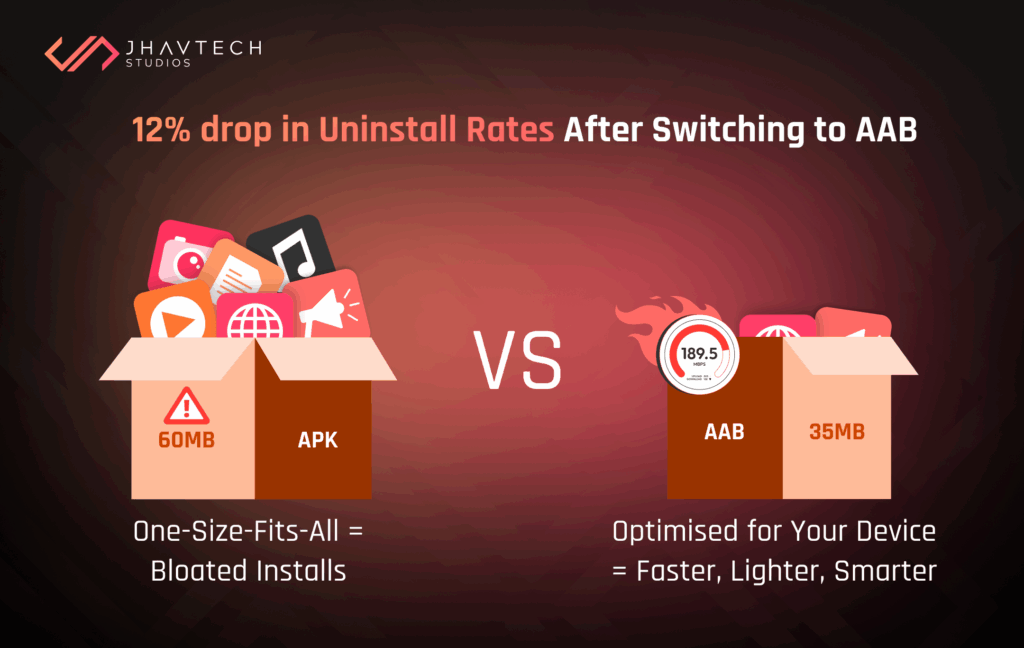
Google Play requires App Bundles for new apps. A bundle lets Play deliver only the code and resources each device needs.
Benefits of App Bundles:
- Faster downloads and installs
- A smaller footprint on the device
- Less memory use
Example: One of our e-commerce apps cut its size from 60MB to 35MB by moving to App Bundles and removing unused assets. Uninstalls dropped 12% within 60 days.
7. Support 16 KB Memory Pages
Newer Android devices use 16 KB memory pages. Google Play now requires apps that target Android 15 or higher to support them. If your app uses native libraries, rebuild them with a current NDK and test on a 16 KB emulator before your next release.
Best Practices for Battery Life Optimisation
Android shows users which apps use the most battery, and they uninstall the worst offenders. These four practices extend battery life without removing features.
1. Use WorkManager for Background Tasks
Waking the device too often drains the battery. WorkManager batches background work and respects system conditions such as charging, network and battery level, so syncs and backups run when they cost least.
Use Case: Running nightly backups only when the phone is idle and plugged in.
2. Limit Location Updates and Sensor Usage
GPS and sensors use a lot of power. If your app needs location:
- Use the FusedLocationProviderClient
- Use balanced or passive accuracy when exact location isn't needed
- Throttle sensor reads (for example every 10 seconds, not every second)
Lower the update rate when the user is not moving, and avoid background location unless the feature truly needs it.
⚠️ Continuous background tracking is a fast route to 1-star reviews.
3. Respect Doze Mode and App Standby
Doze and App Standby limit background work when the device is idle. Apps that fight them get throttled.
How to Adapt:
- Use setAndAllowWhileIdle for alarms that must still fire during Doze, and request exact alarms only when the feature truly needs them
- Use WorkManager for periodic tasks
- Avoid always-on “keep-alive” services
Ignoring Doze leads to late notifications and broken syncing, especially on phones with aggressive battery savers.

4. Measure on Real Devices
Lab tests miss problems that real users hit. Use these tools together:
- Android vitals in the Play Console: crash rate, ANR rate, slow frames and excessive battery use, from real users.
- Firebase Performance Monitoring: app start time, slow screens and network latency per release.
- Macrobenchmark and Perfetto: repeatable startup and scrolling tests, and detailed traces when something is slow.
This data is most useful alongside crash reports and user feedback. For example, a travel app we worked on used Firebase to find a slow splash screen caused by oversized images. Compressing them cut launch time by 43%.
Android Optimisation FAQs
What makes an Android app slow?
Work on the main thread, deeply nested layouts, too many objects being created, memory leaks and large images are the usual causes.
How do I improve battery life in my Android app?
Use WorkManager, limit background services, throttle GPS and sensors, and work with Doze and App Standby.
Why is my Android app using so much battery?
It is usually waking the device too often, requesting frequent location updates or running inefficient loops.
Does app size affect performance?
Yes. Large apps install and load slower, use more memory and crash more often on low-end phones.
What is a Baseline Profile?
A list of code paths Android compiles ahead of time, so your app starts and scrolls faster from the first launch.
How do I optimise Android apps for older devices?
Use lighter assets, avoid memory-heavy work and test across Android versions and screen sizes.
Is Firebase worth using for Android performance?
Yes. Together with Android vitals, it shows how your app performs on real devices so you can fix the biggest problems first.
Related Services
- Learn more about our Android App Development Services
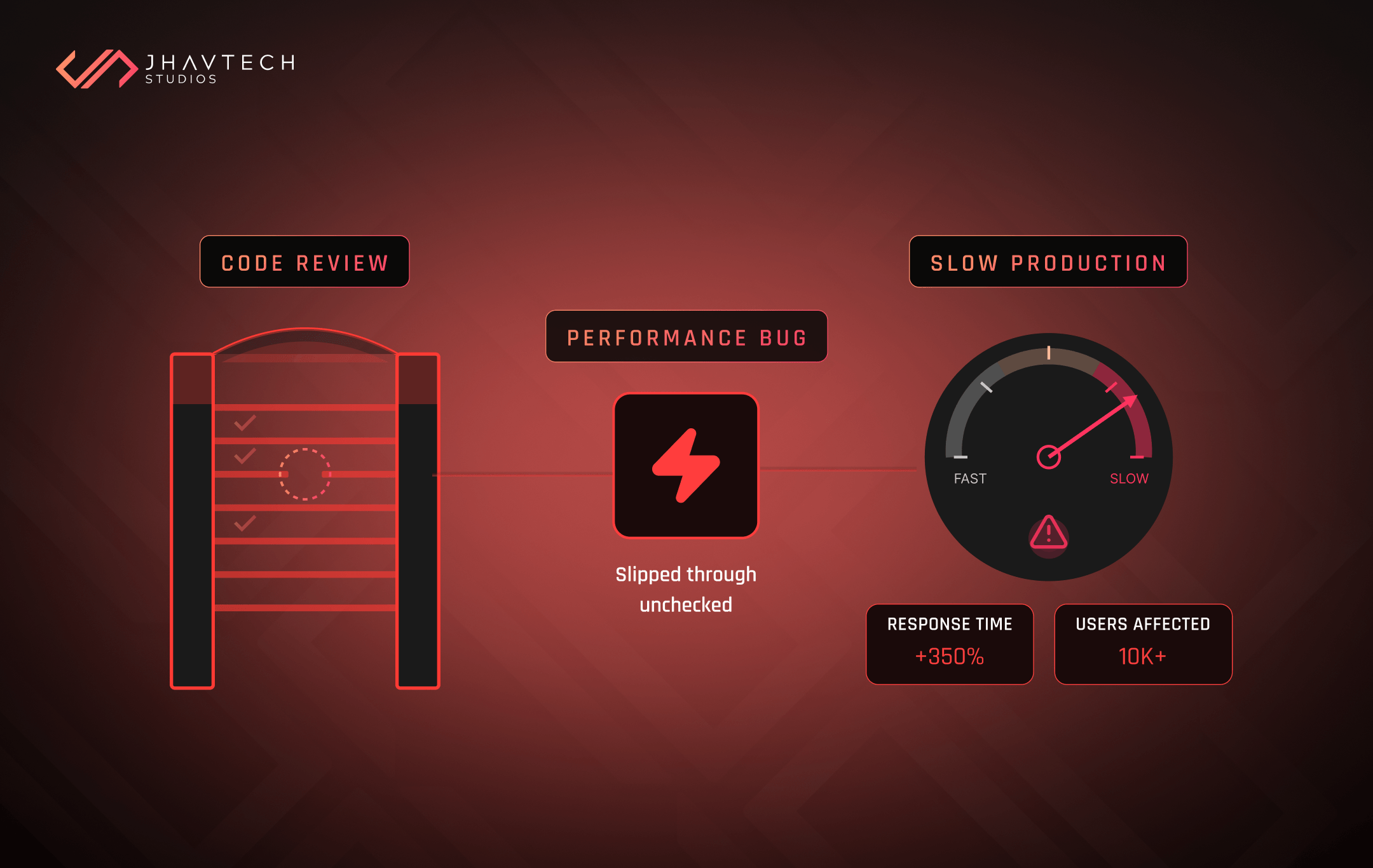
- Already have an app that is slow or drains battery? Book a Free Code Review with our Android team
- If your app needs a full performance overhaul, see our Software Project Rescue service
Final Thoughts
In 2026, an Android app that is slow or power-hungry loses users and Play Store visibility. Optimising it is not a one-off job: build on a clean architecture, keep the main thread free, ship Baseline Profiles and watch Android vitals after every release.
Need help optimising, fixing or rebuilding your Android app? Contact Jhavtech Studios and our Android team will show you where the time and battery are going.